The Surface Slim Pen 2 can work as a tiny Slidev clicker. The trick is not to make Slidev understand a pen. It is to make the pen emit the same keyboard actions Slidev already understands:
single click  -> Right Arrow or Space -> next animation or slide
double click  -> Left Arrow           -> previous animation or slide
long press    -> F                    -> fullscreen
That is the whole setup.
The annoying part is that the Slim Pen 2 is not a presentation remote by default. Windows treats the top button as a Bluetooth shortcut button for Windows Ink-style actions, while Slidev listens for keyboard navigation. So you need a small remap layer between the two.
My recommendation: use PowerToys Keyboard Manager first. It is the cleanest fix because it does not require changing every Slidev deck. Use AutoHotkey if PowerToys does not see the pen events reliably. Use Slidev’s own shortcut setup only when you want the mapping committed into a specific deck repository.
What Slidev Already Supports
Slidev does not need much help here. In play mode, its documented keyboard navigation includes:
rightorspacefor the next animation or slideleftfor the previous animation or slideffor fullscreen
Presenter mode is also built in. You can open:
http://localhost:3030/presenter
Slidev recommends using one browser window in play mode for the audience and another in presenter mode for yourself. Navigation from presenter mode syncs the other open pages.
So the job is simple: make the pen’s top button behave like a keyboard.
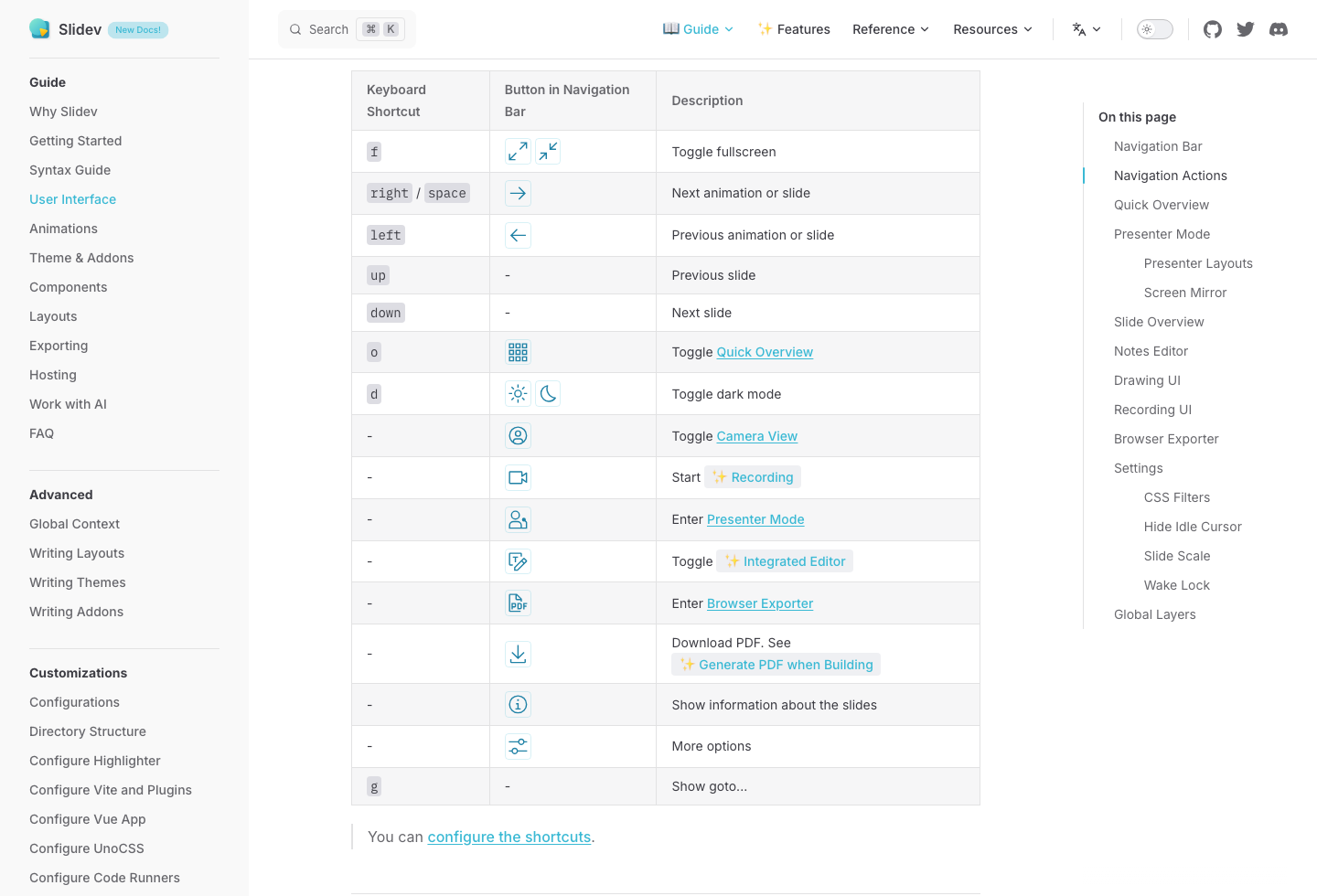
Screenshot: Slidev’s navigation actions table maps right and space to next, left to previous, and f to fullscreen.
Pair the Surface Slim Pen 2
First, pair the pen over Bluetooth.
On Windows 11:
- Charge or wake the pen.
- Open Settings -> Bluetooth & devices -> Add device -> Bluetooth.
- Hold the pen’s top button for 5-7 seconds until the LED flashes white.
- Select Surface Slim Pen 2.
Microsoft documents the same pairing flow for the Surface Slim Pen 2. The one-second wake-up detail matters if the pen has been sitting in a bag or charging cradle and appears dead the first time you try to pair it.
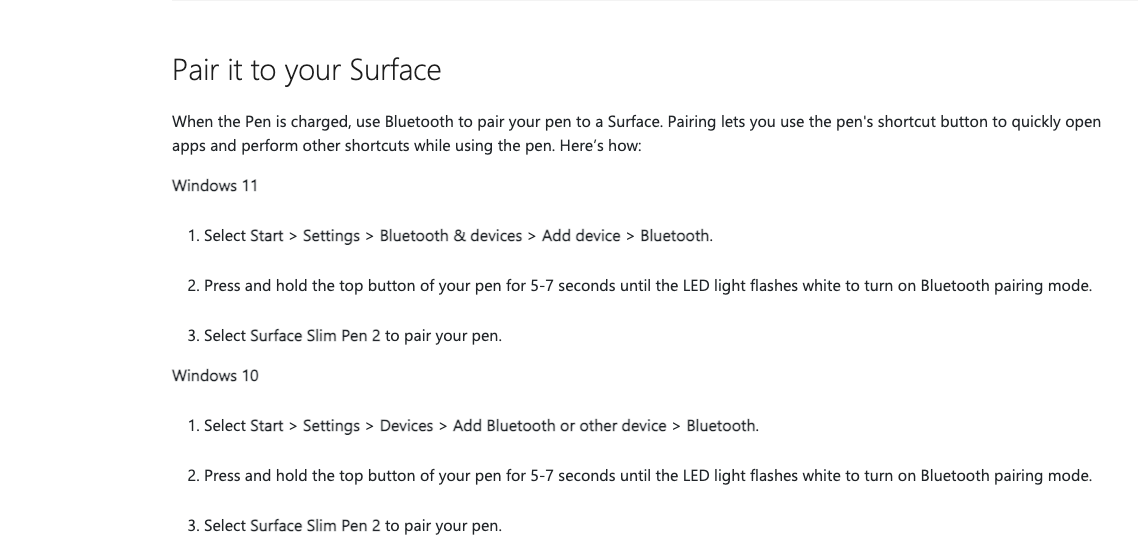
Screenshot: Microsoft’s Surface Slim Pen support page describes the Bluetooth pairing flow and the 5-7 second top-button hold.
Run Slidev
Start the deck:
pnpm dev
Open the audience window:
http://localhost:3030
Open presenter mode:
http://localhost:3030/presenter
Click once inside the browser window before testing the pen. Browser focus still matters. If the active window is Slack, Teams, or PowerToys Settings, your beautiful slide click will go absolutely nowhere useful.
Best Option: PowerToys Keyboard Manager
Install or open Microsoft PowerToys, then go to:
Keyboard Manager -> Remap a key
PowerToys Keyboard Manager supports mapping one input key to another key, shortcut, or text output. It also supports app-specific shortcut remaps. Plain key remaps are usually global, so treat browser-only scoping as a bonus if your exact pen event is exposed in a way PowerToys can scope.
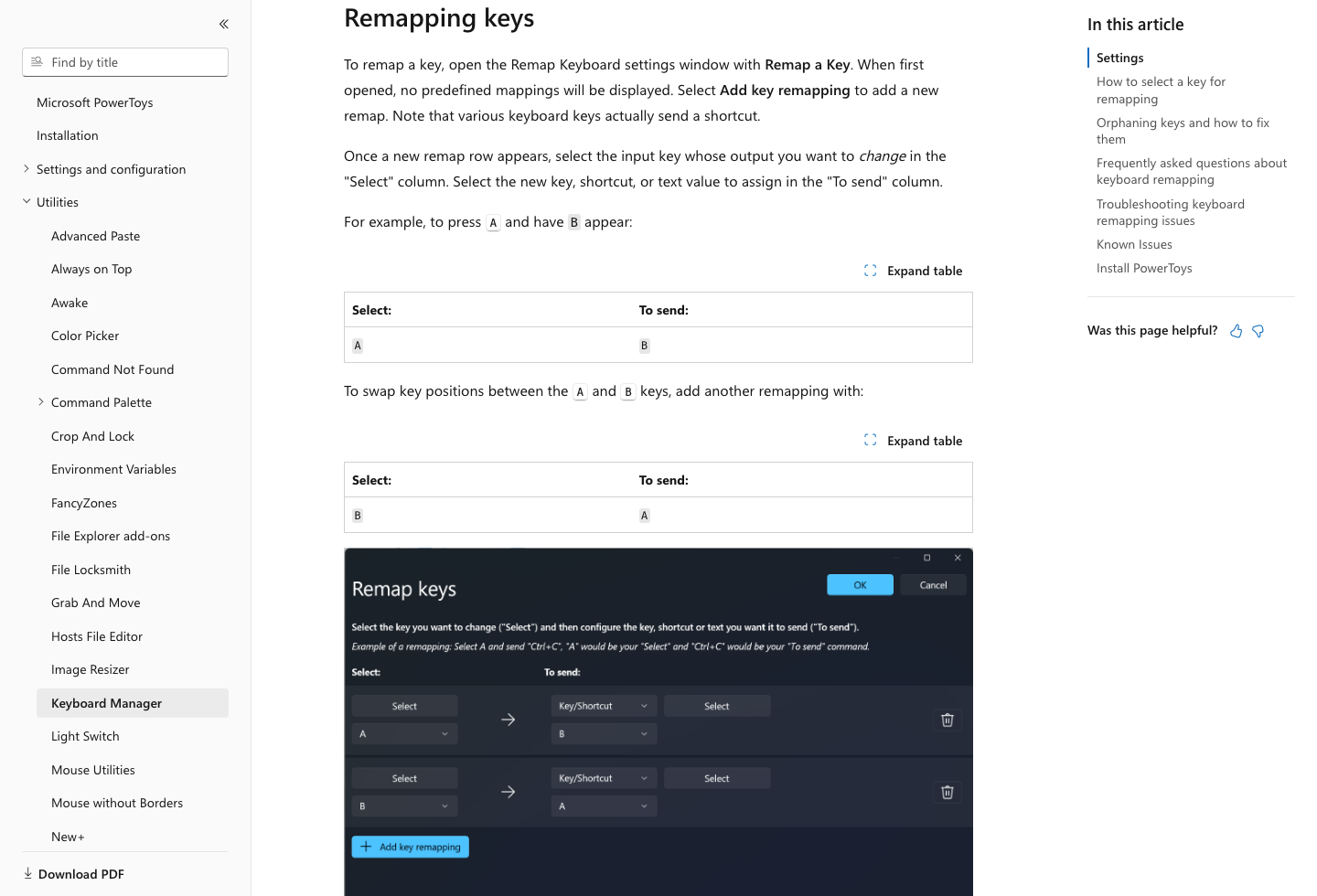
Screenshot: Microsoft Learn’s PowerToys Keyboard Manager docs show the Remap keys workflow used for this setup.
Start with this mapping:
Surface Pen single click -> Right Arrow
Surface Pen double click -> Left Arrow
Surface Pen long press   -> F
On many Surface Pen and Slim Pen setups, the top-button events appear to remapping tools as high function keys:
F20 = single click
F19 = double click
F18 = long press
Do not type those manually first. In PowerToys, choose the source key field and press the pen button. If PowerToys records F20, map it to Right. If it records F19, map it to Left. If it records F18, map it to F.
If your setup lets you scope the mapping to a browser executable, use one of these:
msedge.exe
chrome.exe
firefox.exe
Otherwise, use the global remap while presenting and remove or disable it afterward if those high function keys matter elsewhere.
Alternative: AutoHotkey v2
If PowerToys does not detect the events consistently, AutoHotkey gives you a more explicit fallback.
Create a file such as surface-pen-slidev.ahk:
#Requires AutoHotkey v2.0
#SingleInstance Force

; Surface Pen / Slim Pen 2 top-button mappings.
; Keep both plain F18-F20 and Win+F18-F20 variants because Windows
; drivers and firmware revisions do not always expose the same shape.

#HotIf WinActive("Slidev") || WinActive("localhost:3030") || WinActive("ahk_exe msedge.exe") || WinActive("ahk_exe chrome.exe") || WinActive("ahk_exe firefox.exe")

F20::Send "{Right}"   ; single click: next
#F20::Send "{Right}"

F19::Send "{Left}"    ; double click: previous
#F19::Send "{Left}"

F18::Send "f"         ; long press: fullscreen
#F18::Send "f"

#HotIf
Run the script before presenting, then focus the Slidev browser window.
If your pen reports different keys, use AutoHotkey’s key history window or PowerToys’ selector dialog to identify what Windows is receiving. Keep the output actions the same: Right, Left, and f.
Alternative: Configure Slidev Shortcuts
If the browser receives the pen events directly, you can configure Slidev itself.
Create:
./setup/shortcuts.ts
Add:
import type { NavOperations, ShortcutOptions } from '@slidev/types'
import { defineShortcutsSetup } from '@slidev/types'

export default defineShortcutsSetup((
  nav: NavOperations,
  base: ShortcutOptions[],
) => {
  return [
    ...base,

    {
      key: 'F20',
      fn: () => nav.next(),
      autoRepeat: false,
    },

    {
      key: 'F19',
      fn: () => nav.prev(),
      autoRepeat: false,
    },
  ]
})
Slidev documents this ./setup/shortcuts.ts hook with defineShortcutsSetup, nav.next(), and nav.prev(). This is a good deck-specific solution, but I would not start here. If you present from multiple repositories, OS-level remapping is less repetitive.
Fallback: Slidev Remote Mode
If the pen is unreliable, use Slidev’s remote mode:
pnpm dev --remote
or with a password:
pnpm dev --remote=my_password
Then control the deck from another device. It is less elegant than using the pen, but it avoids the Windows Ink and Bluetooth shortcut path entirely.
Troubleshooting
If single-click does nothing, check focus first. Click the Slidev page or presenter window, then try again.
If PowerToys does not record anything, confirm the pen is paired as a Bluetooth device, not just working as an inking stylus. The top button needs Bluetooth pairing.
If the browser receives F20 but Slidev does not move, remap to Right or Space instead of trying to teach every deck about F20.
If double-click is flaky, do not fight it during a live talk. Map single-click to Right, keep the keyboard nearby for back-navigation, and revisit the remap after the session.
If long-press opens a Windows feature, disable or override the Windows Pen shortcut behavior before presenting. A surprise app launcher is not a strong stage presence.
The Setup I Would Use
For a normal Slidev talk on Windows:
single click -> Right Arrow
double click -> Left Arrow
long press   -> F
Run Slidev with:
pnpm dev
Open:
http://localhost:3030/presenter
Use PowerToys for the remap and scope it to your browser if possible.
That gives you the practical version of a presentation remote without carrying another device. The pen is already in the bag. Make the top button send boring keyboard events, and Slidev does the rest.